Typing Hebrew and Greek with the on-screen keyboard
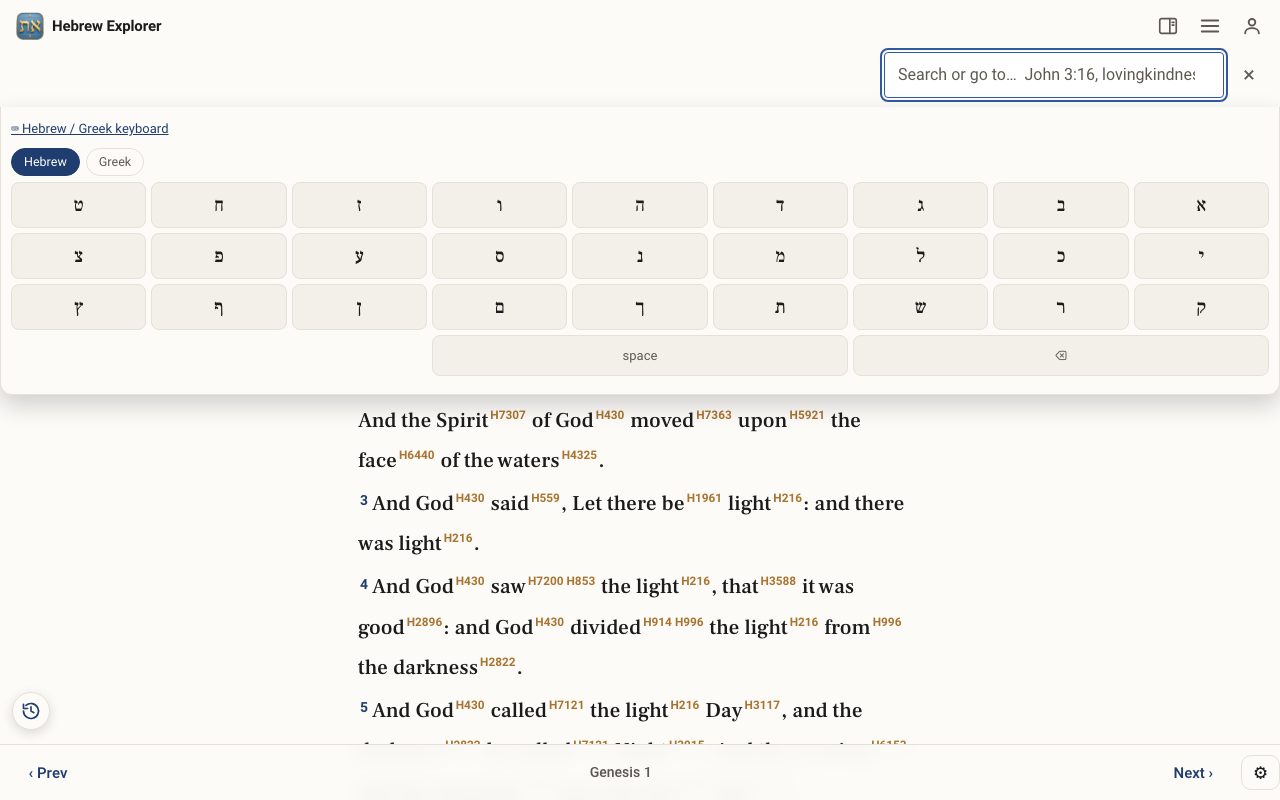
Many tools let you search in Hebrew. You do not need a Hebrew keyboard installed. Wherever you see ⌨ Hebrew keyboard or ⌨ Hebrew / Greek keyboard, tap it and type on screen.
Open Hebrew / Greek keyboard in a new tab →
Step 1: Find the keyboard button
Under the search box, and in the Pictograph study, Word pairs and other tools, tap ⌨ Hebrew keyboard (or Hebrew / Greek keyboard).
Step 2: Tap the letters
Tap letters to type them into the box. Hebrew types right to left. You do not need to add vowel points: searches match the letters with or without them.
Step 3: Search
Press Enter (or the tool's search button) as usual.
Related tutorials
- Searching: words, phrases, Hebrew and Strong's numbersOne search box finds verses, English words, Hebrew and Greek words, and every use of a Strong's number.Free 4 min · Beginner
- Word pairs: the words that keep company with a wordSee which words appear most often alongside any word, in the Torah, the Tanakh, the New Testament or the whole Bible.Free 3 min · Intermediate
- Hebrew Word Parts: take any word apartType or tap any Hebrew word to see its prefixes, root and suffixes explained, with the combined meaning.Free 4 min · Beginner