
Scripture Exporter: take a passage into your document or slides
Preparing a handout, a slide or a lesson? Scripture Exporter takes a passage out of the reader already formatted the way you want: English, Hebrew, Greek or a word-by-word interlinear, in your font, size and colour. It is part of Hebrew Explorer Pro.
Open Scripture Exporter in a new tab →
Step 1: Open Scripture Exporter
Tap Tools ▾ → Scripture Exporter.
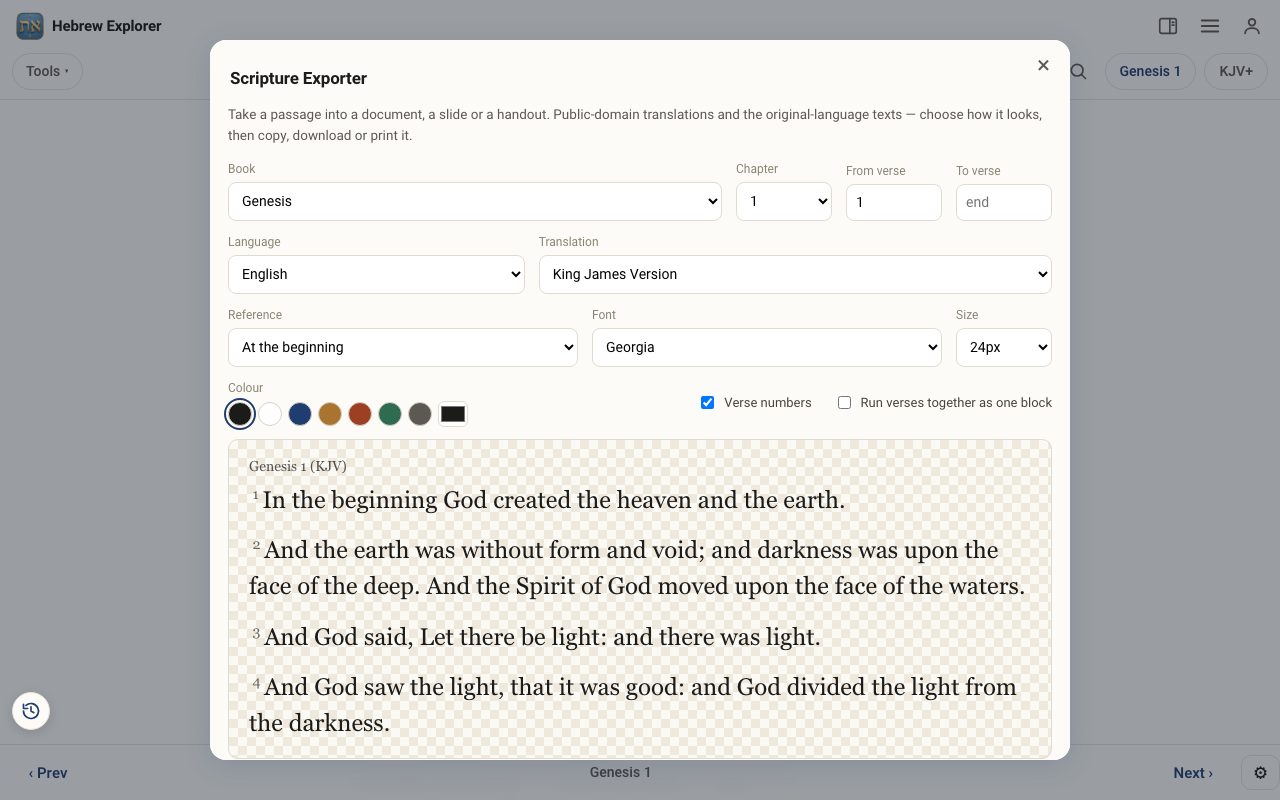
Step 2: Choose the passage
Choose the Language (English, Hebrew, Greek or Interlinear), the Translation, then the Book, Chapter and From verse / To verse, up to a chapter.
Step 3: Style it
Pick the Font, Size and Colour (white text for dark slides is included). Put the Reference at the beginning, at the end or nowhere, turn Verse numbers on or off, and choose whether to run verses together as one block.
Step 4: Copy, download or print
Copy keeps the formatting when you paste into Word, Google Docs or slides. Or use Download .html, Download .txt, or Print / Save as PDF.
Related tutorials
- Learn Hebrew Scripture: read any verse aloud in HebrewAny verse laid out word by word, with syllables, stress, meaning and a Hebrew voice, printable as a study sheet.Free samples · Pro 6 min · Beginner
- Hebrew Explorer Pro: what's free and what Pro addsThe reader and nearly every study tool are free. Pro adds a handful of deeper tools.Free 2 min · Beginner