Highlights & notes: mark verses and keep your thoughts
Tap a verse number to highlight the verse or write a note on it. Everything you mark is gathered in the Study Panel.
Open Highlights & notes in a new tab →
Step 1: Tap a verse number
Tap the small number at the start of a verse, for example 3 in Genesis 1. A box opens for that verse.
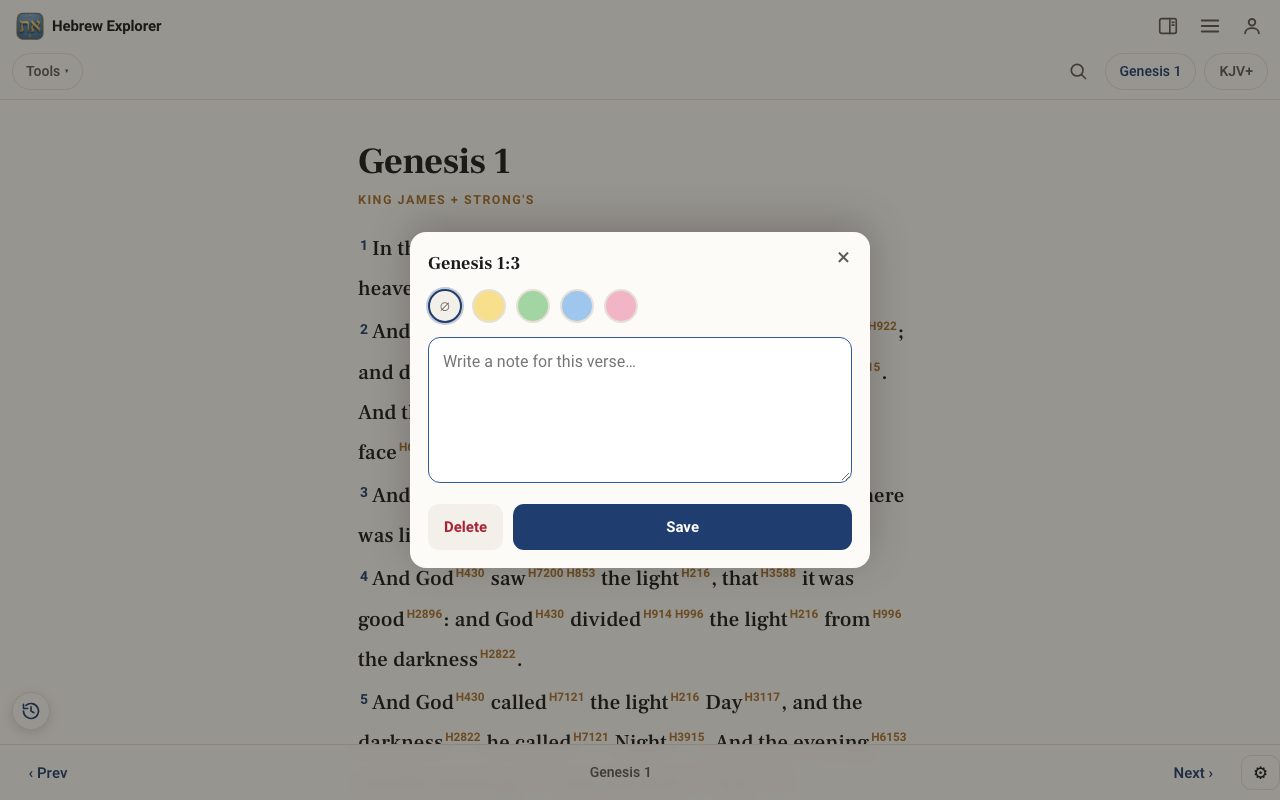
Step 2: Choose a highlight colour
Tap yellow, green, blue or pink. Tap ∅ for no highlight.
Step 3: Write a note
Type your note in Write a note for this verse… and tap Save. Delete removes it.
Step 4: Find them again
Open the Study Panel and choose the Notes or Highlights tab, or Tools ▾ → Highlights & notes.
Related tutorials
- The Study Panel: your study space beside the textResources for the chapter, your notes and highlights, saved studies, a parallel translation, books and search, all beside the text.Free 6 min · Beginner
- Your free account: sign in, and what it savesCreate a free account, sign in, and see what is kept on your device and what is kept in your account.Free 2 min · Beginner