Reading the Bible: find any book and chapter
The reader holds all 66 books, plus the Apocrypha. Here is how to get anywhere in a couple of taps.
Open The reader in a new tab →
- Tap the book and chapter button
- Pick a book, then a chapter
- Move chapter by chapter
- Go straight to a verse with search
- Share the exact place you are reading
Step 1: Tap the book and chapter button
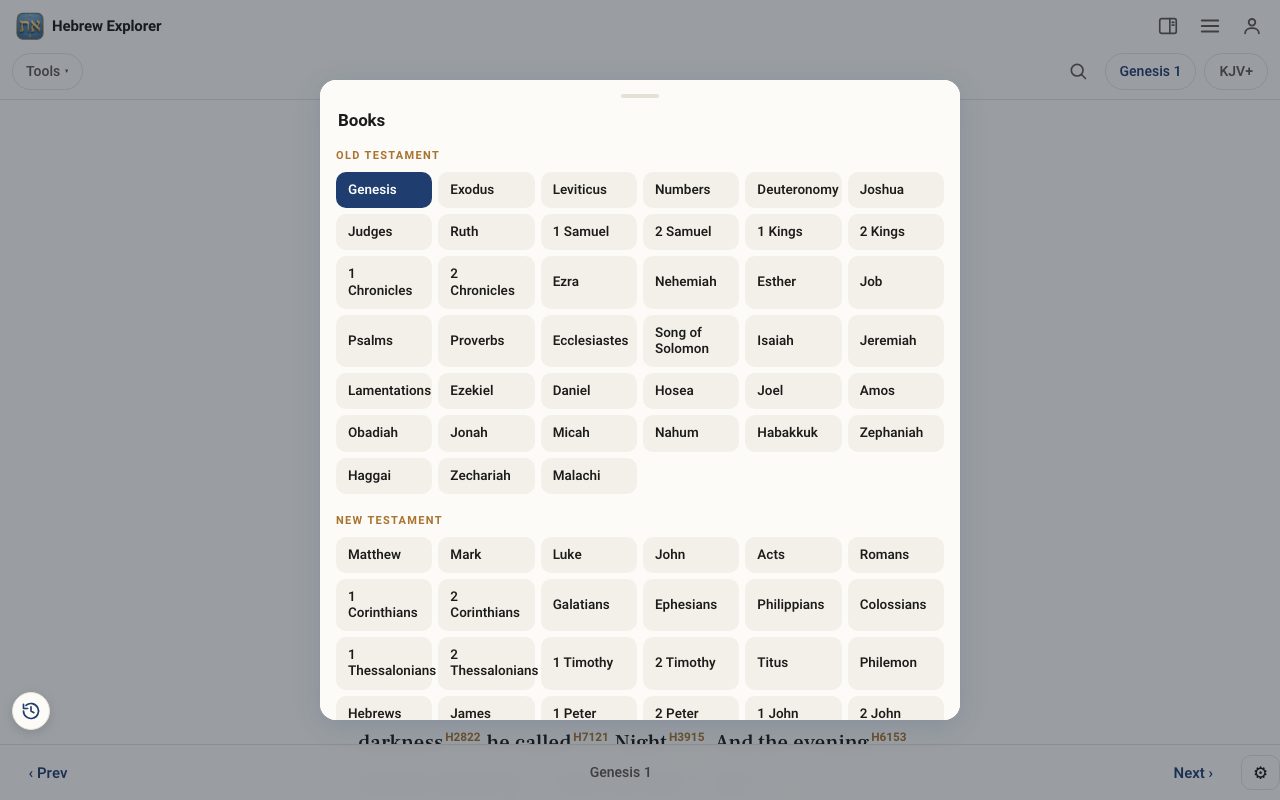
At the top right, tap the button that shows where you are, for example Genesis 1. A list of every book opens, with the Old Testament first and the New Testament below it.
Step 2: Pick a book, then a chapter
Tap the book you want, then tap the chapter number. The chapter opens at the top.
Step 3: Move chapter by chapter
Use ‹ Prev and Next › in the bottom bar to step backward or forward one chapter at a time. At the end of a book, Next carries you into the next book.
Step 4: Go straight to a verse with search
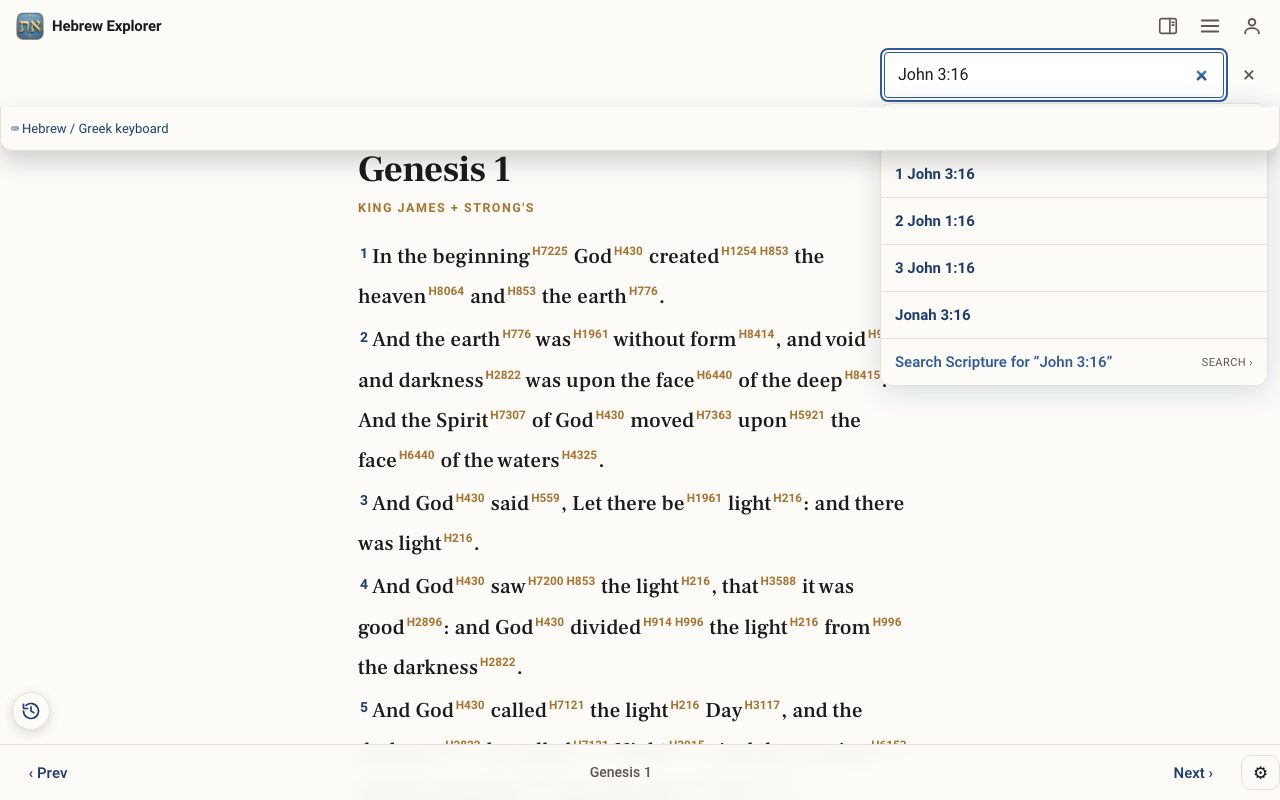
The fastest way to reach a verse is to type it. Tap the magnifying glass, type a reference such as John 3:16 or Ps 23, and press Enter.
Step 5: Share the exact place you are reading
The web address changes as you read. For example hebrewexplorer.com/#/kjvp/Gen/12 is Genesis 12 in the KJV with Strong's numbers. Copy the address from your browser to send someone the exact chapter and translation.
Related tutorials
- Your first five minutes: a tour of the screenWhat every button on the screen does, so nothing feels hidden.Free 5 min · Beginner
- Choosing a translation — English, Hebrew, Greek and moreSwitch between English versions, the Hebrew and Greek originals, the Septuagint and Spanish.Free 4 min · Beginner
- Searching: words, phrases, Hebrew and Strong's numbersOne search box finds verses, English words, Hebrew and Greek words, and every use of a Strong's number.Free 4 min · Beginner