History: retrace every step of your study
Word study sends you down a lot of paths: a lexicon entry, a family tree, a search, another chapter. History remembers every step, so you never lose your way back.
Step 1: Tap the clock button
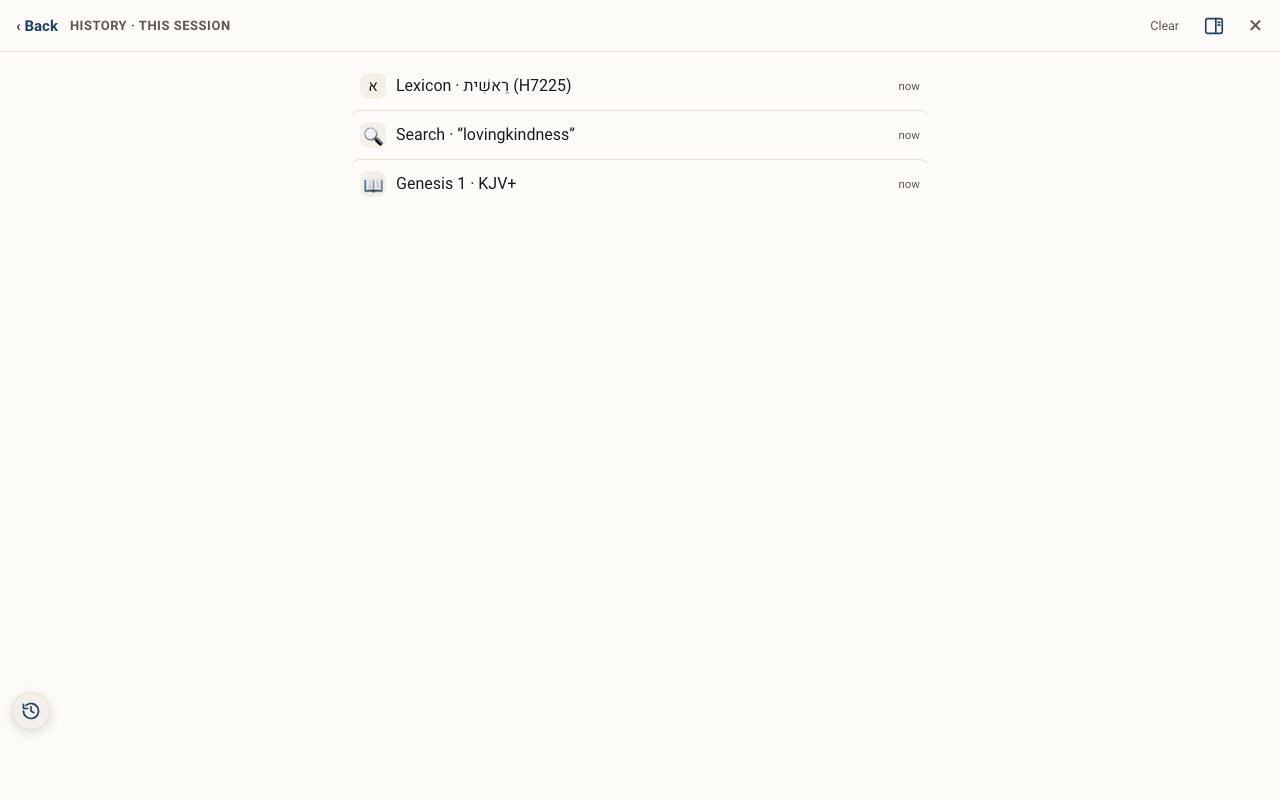
At the bottom left of the reader is a small round clock button. Tap it to open History · This session.
Step 2: Tap any line to go back
Each line shows what you opened (a chapter, a lexicon word, a search, a tool) and how long ago. Tap one to return to it exactly.
Step 3: Clear it when you are done
Tap Clear at the top to start a fresh history.
Related tutorials
- Your first five minutes: a tour of the screenWhat every button on the screen does, so nothing feels hidden.Free 5 min · Beginner
- The Study Panel: your study space beside the textResources for the chapter, your notes and highlights, saved studies, a parallel translation, books and search, all beside the text.Free 6 min · Beginner
- Word Study Sheets: build and print your own word studyGather definitions, letters, gematria, word pairs and verses from every tool into one sheet you can edit and print.Free 6 min · Intermediate